盒子 / 面剔除
上篇文章我们学到了如何变换物体,现在我们可以让着色器中的立方体动起来了。
为了看见立方体所有的面,我们让立方体绕 X 和 Y 轴旋转。上篇文章中我们总结了各种旋转矩阵,我们可以创建一个工具矩阵类,以后可以直接使用这些工具矩阵方法。
class Mat4 {  static fromXRotation(rad) {    const s = Math.sin(rad)    const c = Math.cos(rad)    return [      1, 0, 0, 0,      0, c, s, 0,      0, -s, c, 0,      0, 0, 0, 1    ]  }
  static fromYRotation(rad) {    const s = Math.sin(rad)    const c = Math.cos(rad)    return [      c, 0, -s, 0,      0, 1, 0, 0,      s, 0, c, 0,      0, 0, 0, 1    ]  }
  static multiply(a, b, out = []) {    const a00 = a[0], a01 = a[1], a02 = a[2], a03 = a[3];    const a10 = a[4], a11 = a[5], a12 = a[6], a13 = a[7];    const a20 = a[8], a21 = a[9], a22 = a[10], a23 = a[11];    const a30 = a[12], a31 = a[13], a32 = a[14], a33 = a[15];
    let b0 = b[0], b1 = b[1], b2 = b[2], b3 = b[3];    out[0] = b0 * a00 + b1 * a10 + b2 * a20 + b3 * a30;    out[1] = b0 * a01 + b1 * a11 + b2 * a21 + b3 * a31;    out[2] = b0 * a02 + b1 * a12 + b2 * a22 + b3 * a32;    out[3] = b0 * a03 + b1 * a13 + b2 * a23 + b3 * a33;
    b0 = b[4]; b1 = b[5]; b2 = b[6]; b3 = b[7];    out[4] = b0 * a00 + b1 * a10 + b2 * a20 + b3 * a30;    out[5] = b0 * a01 + b1 * a11 + b2 * a21 + b3 * a31;    out[6] = b0 * a02 + b1 * a12 + b2 * a22 + b3 * a32;    out[7] = b0 * a03 + b1 * a13 + b2 * a23 + b3 * a33;
    b0 = b[8]; b1 = b[9]; b2 = b[10]; b3 = b[11];    out[8] = b0 * a00 + b1 * a10 + b2 * a20 + b3 * a30;    out[9] = b0 * a01 + b1 * a11 + b2 * a21 + b3 * a31;    out[10] = b0 * a02 + b1 * a12 + b2 * a22 + b3 * a32;    out[11] = b0 * a03 + b1 * a13 + b2 * a23 + b3 * a33;
b0 = b[12]; b1 = b[13]; b2 = b[14]; b3 = b[15]; out[12] = b0 * a00 + b1 * a10 + b2 * a20 + b3 * a30; out[13] = b0 * a01 + b1 * a11 + b2 * a21 + b3 * a31; out[14] = b0 * a02 + b1 * a12 + b2 * a22 + b3 * a32; out[15] = b0 * a03 + b1 * a13 + b2 * a23 + b3 * a33; return out; }}这里直接使用上篇文章中的旋转矩阵,需要注意这里将它转置了一下,因为 OpenGL 中的矩阵是列主序的。
下面在着色器中的立方体代码的基础上添加新的代码。
const gl = createGl()
const program = createProgramFromSource(gl, `attribute vec4 aPos;attribute vec4 aColor;uniform mat4 uMat;varying vec4 vColor;
void main() {  gl_Position = uMat * aPos;  vColor = aColor;}`, `precision mediump float;varying vec4 vColor;
void main() {  gl_FragColor = vColor;}`)
const points = new Float32Array([  -0.5,0.5,-0.5, 0.5,0.5,-0.5, 0.5,-0.5,-0.5, -0.5,-0.5,-0.5,  0.5,0.5,0.5, -0.5,0.5,0.5, -0.5,-0.5,0.5, 0.5,-0.5,0.5  // 立方体的 8 个顶点])const colors = new Float32Array([  1,0,0, 0,1,0, 0,0,1, 1,0,1,  0,0,0, 0,0,0, 0,0,0, 0,0,0  // 每个顶点的颜色])const indices = new Uint8Array([ // 面的索引,值是 points 的下标  0, 1, 2, 0, 2, 3, // 前  1, 4, 2, 4, 7, 2, // 右  4, 5, 6, 4, 6, 7, // 后  5, 3, 6, 5, 0, 3, // 左  0, 5, 4, 0, 4, 1, // 上  7, 6, 3, 7, 3, 2  // 下])
const [posLoc, posBuffer] = createAttrBuffer(gl, program, 'aPos', points)const [colorLoc, colorBuffer] = createAttrBuffer(gl, program, 'aColor', colors)const indexBuffer = gl.createBuffer()gl.bindBuffer(gl.ELEMENT_ARRAY_BUFFER, indexBuffer)gl.bufferData(gl.ELEMENT_ARRAY_BUFFER, indices, gl.STATIC_DRAW)
gl.bindBuffer(gl.ARRAY_BUFFER, posBuffer)gl.vertexAttribPointer(posLoc, 3, gl.FLOAT, false, 0, 0)gl.enableVertexAttribArray(posLoc)
gl.bindBuffer(gl.ARRAY_BUFFER, colorBuffer)gl.vertexAttribPointer(colorLoc, 3, gl.FLOAT, false, 0, 0)gl.enableVertexAttribArray(colorLoc)
const matLoc = gl.getUniformLocation(program, 'uMat')
gl.enable(gl.DEPTH_TEST)gl.clearColor(0, 0, 0, 0)
let r = 0function draw() {  gl.clear(gl.COLOR_BUFFER_BIT | gl.DEPTH_BUFFER_BIT)  gl.uniformMatrix4fv(matLoc, false, Mat4.multiply(Mat4.fromXRotation(r), Mat4.fromYRotation(r)))  gl.drawElements(gl.TRIANGLES,indices.length,gl.UNSIGNED_BYTE,0)  r += 0.01  requestAnimationFrame(draw)}draw()
function createShader(gl, type, source) {  const shader = gl.createShader(type)  gl.shaderSource(shader, source)  gl.compileShader(shader)  return shader;}
function createProgramFromSource(gl, vertex, fragment) {  const vertexShader = createShader(gl, gl.VERTEX_SHADER,vertex)  const fragmentShader = createShader(gl, gl.FRAGMENT_SHADER, fragment)  const program = gl.createProgram()  gl.attachShader(program, vertexShader)  gl.attachShader(program, fragmentShader)  gl.linkProgram(program)  gl.useProgram(program)  return program}
function createAttrBuffer(gl, program, attr, data) { const location = gl.getAttribLocation(program, attr) const buffer = gl.createBuffer(); gl.bindBuffer(gl.ARRAY_BUFFER, buffer) gl.bufferData(gl.ARRAY_BUFFER, data, gl.STATIC_DRAW) return [location, buffer]}上面代码中通过 uniformMatrix4fv 给顶点着色器传递旋转矩阵,它的第二个参数为是否转置矩阵,因为我们的矩阵就是列主序的,所以无需转置。
上篇文章中介绍了使用矩阵的好处之一就是可以组合变换,这里我们用 Mat4.multiply(Mat4.fromXRotation(r), Mat4.fromYRotation(r)) 将两个旋转结合起来,然后在应用到立方体的各个顶点,让立方体绕 X 和 Y 轴旋转起来。
Box#
我们发现渲染出来立方体是渐变色的,这是因为我们指定了 8 个顶点的颜色,每个顶点颜色都不同,WebGL 会将顶点着色器传递给片段着色器的颜色进行插值。
如果我们想要每个面都是不同色纯色,我们需要指定每个面的颜色值相同,这样 WebGL 对相同颜色直接进行插值,还是相同的颜色。为了实现这个效果我们就不能共用顶点了,因为每个面颜色都不同。
我们需要单独创建 6 个面然后将这个 6 个面组合起来。为了方便后面使用,我们将它封装成通用函数。
function createBox(width = 1, height = 1, depth = 1, widthSeg = 1, heightSeg = 1, depthSeg = 1) {  const segWidth = width / widthSeg  const segHeight = height / heightSeg  const segDepth = height / depthSeg  const halfWidth = width / 2  const halfHeight = height / 2  const halfDepth = depth / 2
  const position = []  const index = []
  let numVertex = 0  // front, bottom  buildPlane(widthSeg, heightSeg, segWidth, segHeight, halfWidth, halfHeight, halfDepth, 1, -1, 0, 1, 2)  buildPlane(widthSeg, heightSeg, segWidth, segHeight, halfWidth, halfHeight, -halfDepth, -1, -1, 0, 1, 2)
  // left, right  buildPlane(depthSeg, heightSeg, segDepth, segHeight, halfDepth, halfHeight, -halfWidth, 1, -1, 2, 1, 0)  buildPlane(depthSeg, heightSeg, segDepth, segHeight, halfDepth, halfHeight, halfWidth, -1, -1, 2, 1, 0)
  // top, bottom  buildPlane(widthSeg, depthSeg, segWidth, segDepth, halfWidth, halfDepth, halfHeight, 1, 1, 0, 2, 1)  buildPlane(widthSeg, depthSeg, segWidth, segDepth, halfWidth, halfDepth, -halfHeight, 1, -1, 0, 2, 1)
  function buildPlane(uSeg, vSeg, uLen, vLen, halfU, halfV, depth, uDir, vDir, ix, iy, iz) {    const maxU = uSeg + 1    const maxV = vSeg + 1
    let x, y, pos = []    for (let i = 0; i < maxV; i++) {      y = i * vLen - halfV      for (let j = 0; j < maxU; j++) {        x = j * uLen - halfU        pos[ix] = x * uDir        pos[iy] = y * vDir        pos[iz] = depth        position.push(...pos)      }    }
    let a, b, c, d    for (let i = 0; i < vSeg; i++) {      for (let j = 0; j < uSeg; j++) {        a = numVertex + j + maxU * i        b = numVertex + j + maxU * (i + 1)        c = b + 1        d = a + 1        index.push(a, b, c, a, c, d)      }    }
    numVertex += (maxU * maxV)  }
return { position: new Float32Array(position), index: numVertex > 65536 ? new Uint32Array(index) : new Uint16Array(index), }}我们可以指定盒子的宽度、高度和深度,并且还可以设置每个面的有几行和几列。它会返回一个对象里面包含顶点位置和索引。
上面代码有点复杂,需要花点时间消化一下,基本思路是分别构建盒子的 6 个面。比如在构建正面时,我们将面移动到坐标轴的正中间并反转 Y 轴,这样我们就可以从左上角第一个点作为起点。需要注意的是我们上面采用的是右手坐标系,正面的 Z 正值,背面是负值。
现在我们需要指定每个面的颜色。
const box = createBox()let colors = []let size = box.position.length / 6 / 3pushColor(1, 0, 0)pushColor(0, 1, 0)pushColor(0, 0, 1)pushColor(1, 1, 0)pushColor(0, 1, 1)pushColor(1, 0, 1)function pushColor(r, g, b) { for (let i = 0; i < size; i++) { colors.push(r, g, b) }}colors = new Float32Array(colors)看上方的渲染结果,不知道有没有同学注意到我们将正面设置为红色,背面设置为绿色,但是渲染出来却是绿色的面在前。这是因为 createBox 中使用的是右手坐标系,这也是 OpenGL 传统坐标系,不过在坐标系中有强调,标准坐标系中实际上是左手坐标系,Z 值小的在 Z 值大的前面。
面剔除#
上面渲染的立方体,我们一次并不能看见它的所有的面,只能看见 3 个面,但是我们却渲染了所有的面。
为了节省性能,我们可以只渲染用户能看到的面,看不到的面就不渲染了。为了做到这一点我们可以只渲染正面面向用户的面,而丢弃面向用户的面是背面的面。当然 OpenGL 提供了面剔除这个功能,OpenGL 能够检查所有面向观察者的面,并渲染它们,而丢弃那些背向的面。
我们需要让 OpenGL 能够区分哪个面是正面,哪个面是背面。我们已经知道那些复杂模型都是由一个个三角形组成,我们要区分面的正面和背面,也就是区分这一个个三角形的正面和背面。
我们可以通过三角形各个顶点的顺序来搞告诉 OpenGL 哪个是正向三角形哪个是背向三角形。
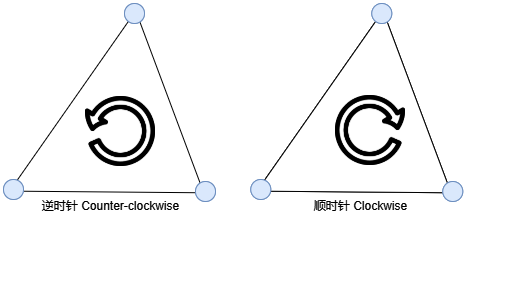
有两种方式描述三角形三个顶点的顺序,分别是顺时针和逆时针。默认情况 OpenGL 将逆时针顺序的三角形处理为正向三角形。我们同样可以伸出右手握拳,然后伸出大拇指,和坐标系中一样,手指的弯曲和三角形的顶点的顺序一样,如果大拇指指向你说明这个面是正面会被渲染,否则是背面会被剔除。
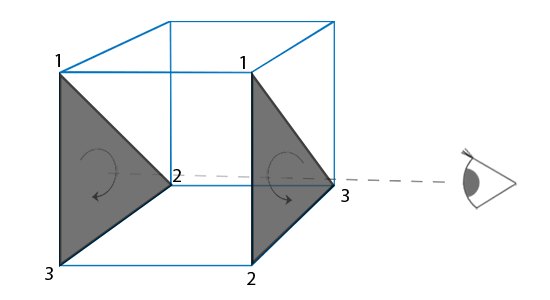
默认情况面剔除是关闭的,我们需要启用它。
gl.enable(gl.CULL_FACE)我们还可以指定剔除哪个面,默认是 gl.BACK。
gl.cullFace(gl.FRONT)gl.cullFace(gl.BACK)gl.cullFace(gl.FRONT_AND_BACK)我们还能指定什么顺序表示的是正面,默认是 gl.CCW 表示逆时针。
gl.frontFace(gl.CW)gl.frontFace(gl.CCW)现在我们回过头,再来看上面的 createBox 函数,在 buildPlane 中第一个循环计算出了面的顶点位置,第二个循环中计算了面的索引,我们求出了每个小格子的 4 个顶点,分别是 a,b,c 和 d,如下图所示。
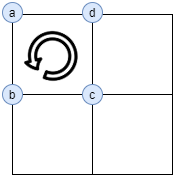
然后是 index.push(a, b, c, a, c, d),需要注意这个顺序非常重要,因为逆时针为正面,a、b 和 c 构造了一个逆时针顺序的三角形,a、c 和 d 构成了另一个逆时针三角形,两个三角形组成了一个正方形。
如果我们将 index.push(a, b, c, a, c, d) 变成 index.push(a, b, c, a, d, c) 将第二个三角形变成顺时针,那么渲染的立方体,将会是下面这样。